> ## Documentation Index
> Fetch the complete documentation index at: https://docs.corrily.com/llms.txt
> Use this file to discover all available pages before exploring further.
# Products
> Creating and managing products in Corrily dashboard
In Corrily, a `Product` represents a sellable item, such as a subscription or a one-time purchase,
that can be offered to users. It is typically mapped 1:1 to plans or add-ons from billing platforms and
can be configured with various parameters like base price, billing interval, currency, and country-specific prices.
## Creating a Product
* navigate to `Product catalog` > `Products` on your Corrily dashboard
* click on `Create Product` button
* Fill a multi-step form
**Step 1**
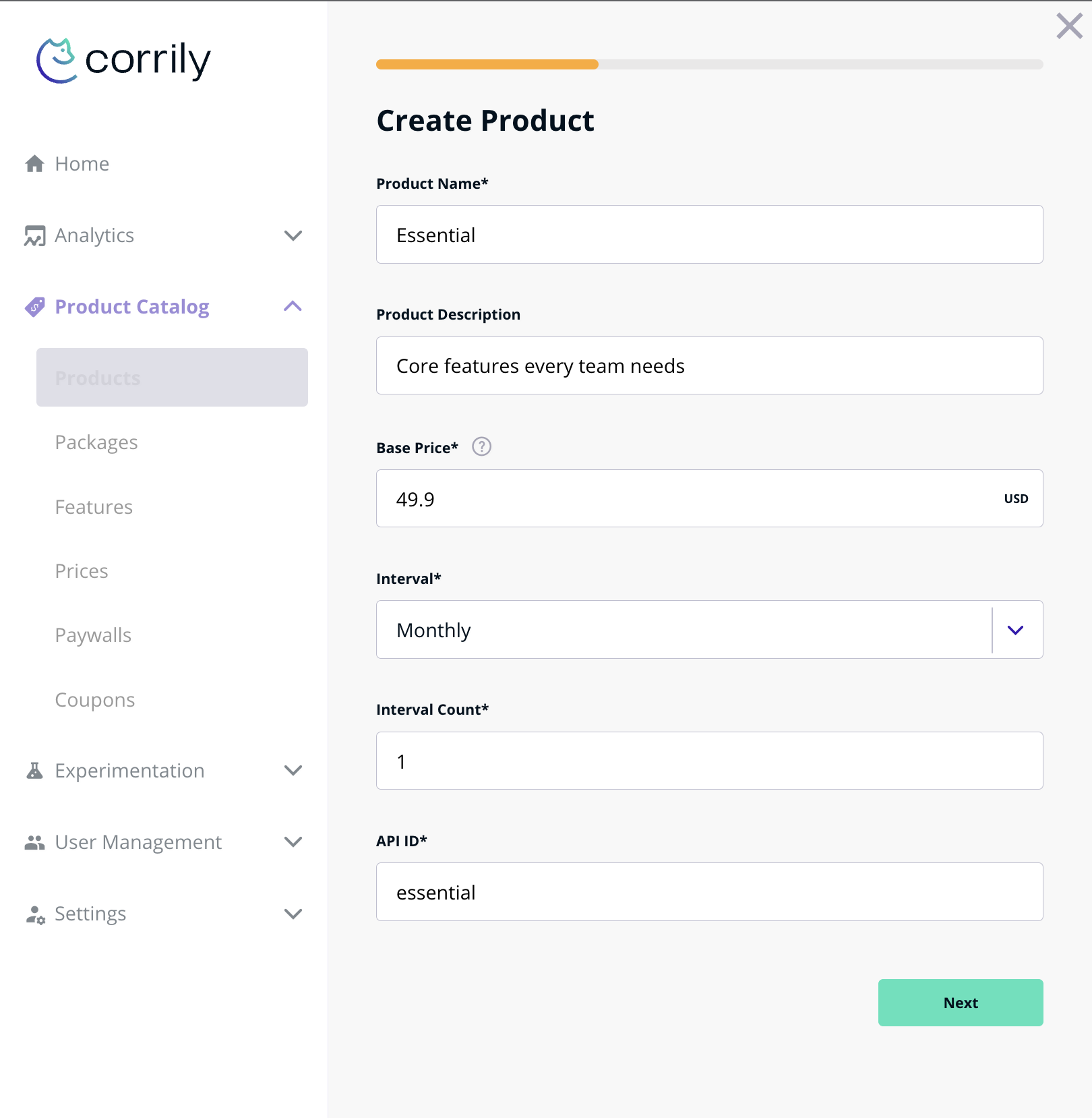 On the first step you need to fill all base information about your product.
This information you will be able to get later via `calculate price` API or via `Paywall integration`.
**Step 2**
On the first step you need to fill all base information about your product.
This information you will be able to get later via `calculate price` API or via `Paywall integration`.
**Step 2**
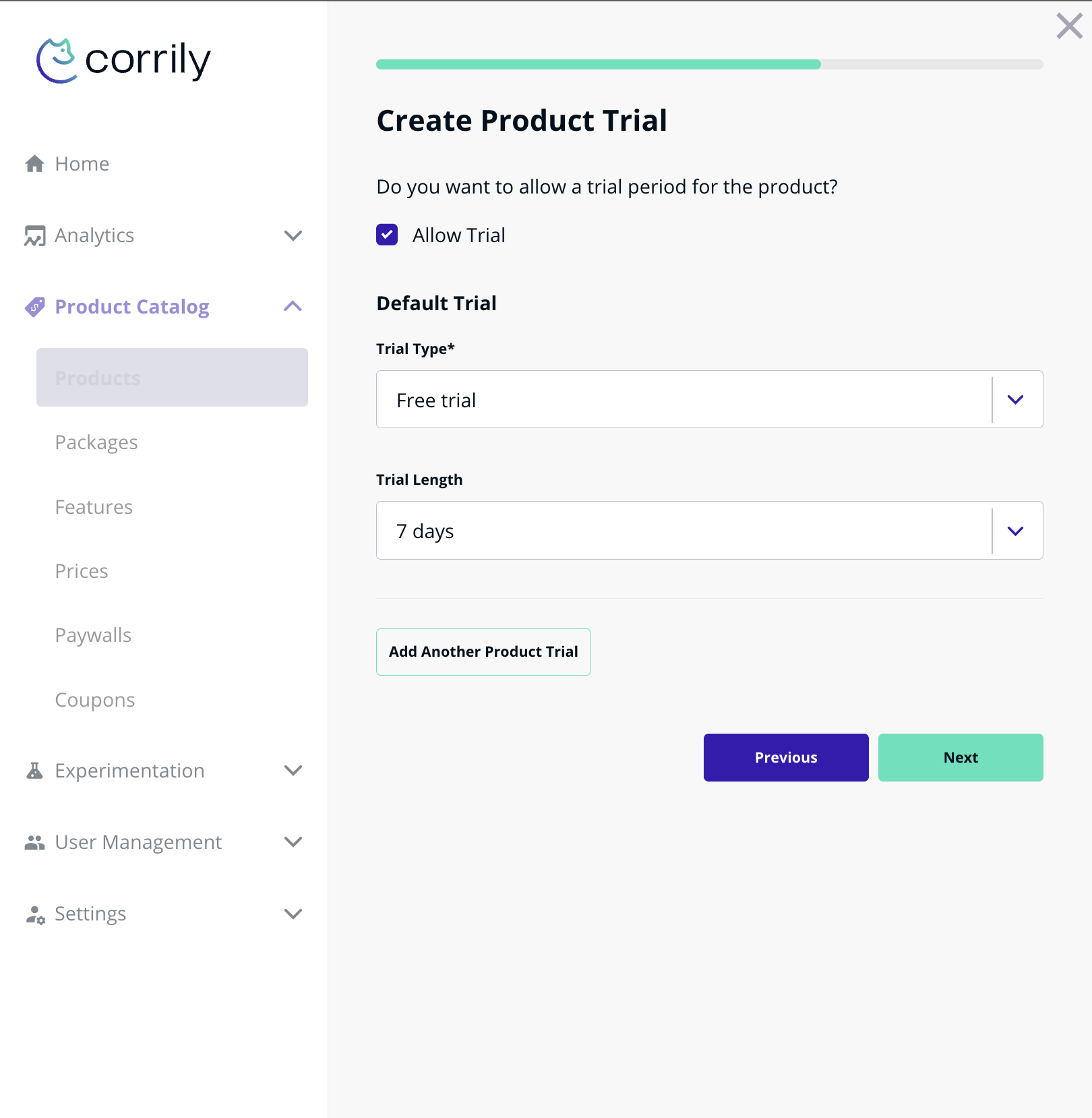 On the second step you can set up trial configuration for your product.
**Step 3**
On the second step you can set up trial configuration for your product.
**Step 3**
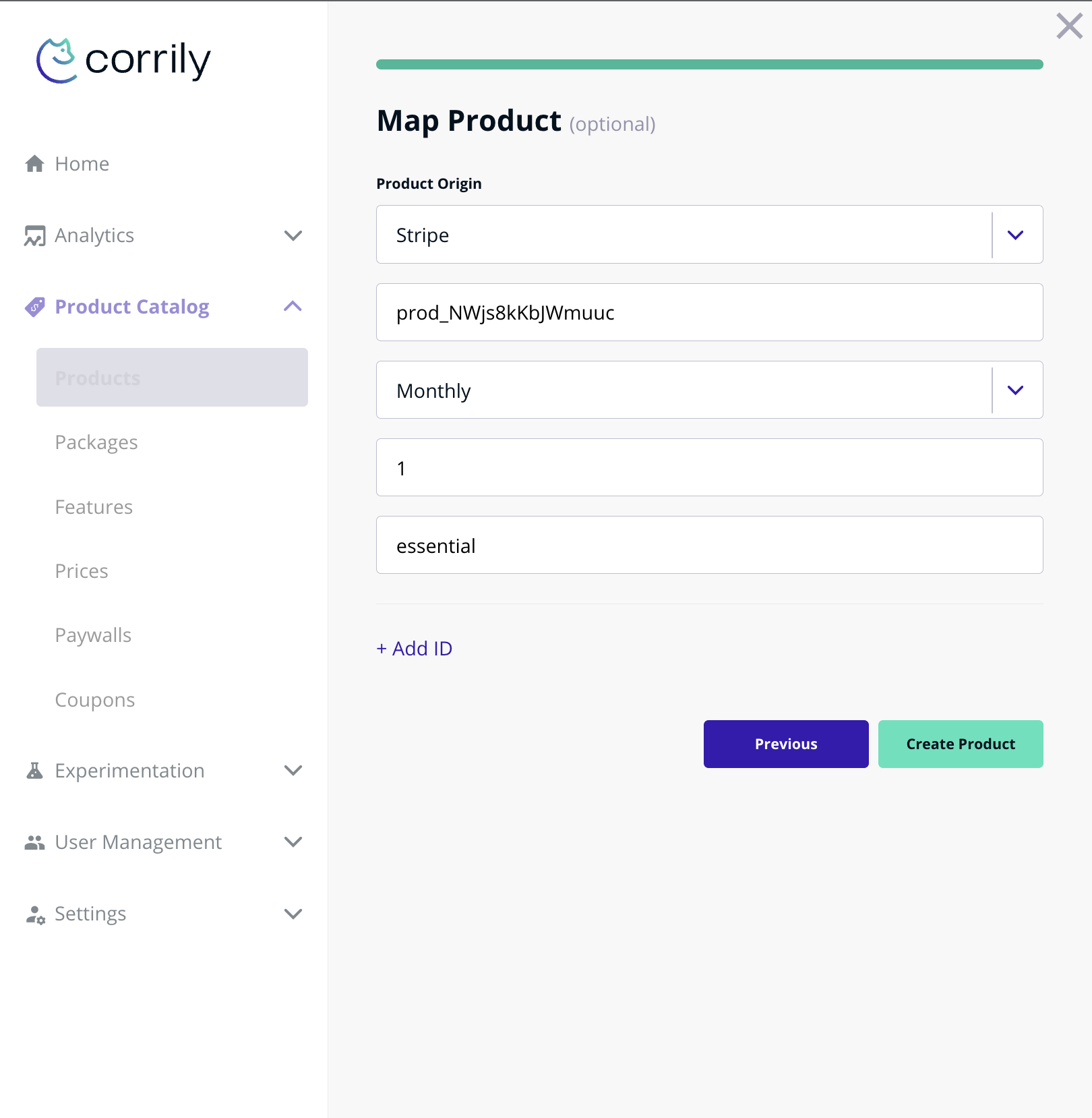 On the third step you can enter information to bind you Corrily product with a product from your payment system.
Also, you can create products via [API](/api-reference/create-product)
### Product features configuration
After a product is created, you can attach `Features` that that product. To do so, click on the product name and
you will see a product information page. On that page there is `Product Features` section.
On the third step you can enter information to bind you Corrily product with a product from your payment system.
Also, you can create products via [API](/api-reference/create-product)
### Product features configuration
After a product is created, you can attach `Features` that that product. To do so, click on the product name and
you will see a product information page. On that page there is `Product Features` section.
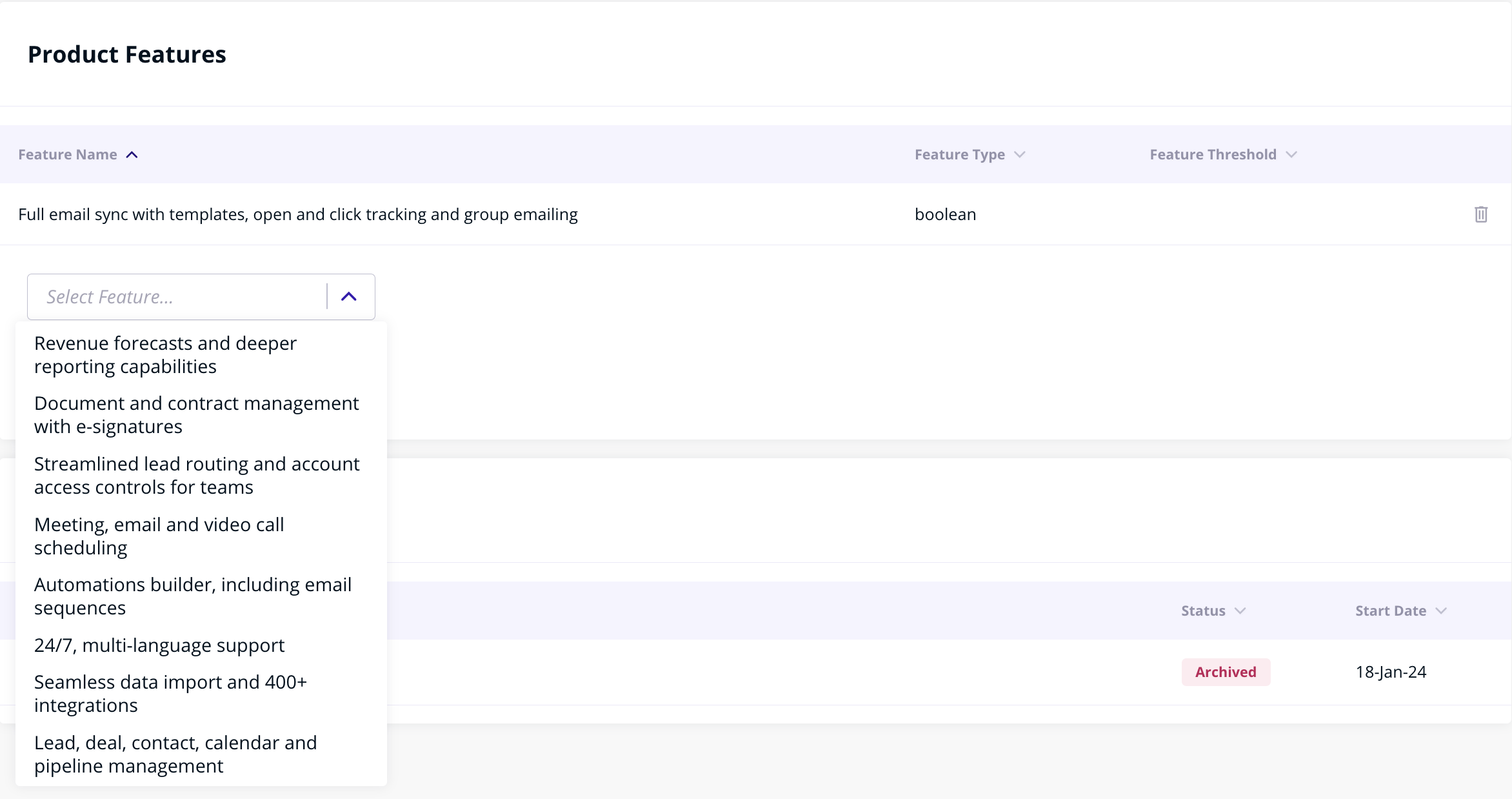 By clicking on an item in features list, you can attach chosen feature to a product.